
Author: Grace Xu
Smart phones, pads, laptops and other electronic products have become indispensable tool partners for children’s learning and entertainment. As parents, how should we treat electronic products?” Let it go” or “total ban” are not very desirable. The author suggests that parents should make use of technology to let their children use electronic products safely.
智能手机、Pad、笔记本电脑等电子产品,已经成为孩子们学习娱乐不可或缺的工具伙伴。作为家长,我们应该如何对待电子产品呢?”放任自流 “或 “全面禁止 “都不太可取。笔者建议,家长应借助技术手段,让孩子安全地使用电子产品。
Although more and more Apps are starting to introduce [Teen Mode], there are always some “cheats” that give kids a chance to get around these restrictions. On the contrary, Apple’s [Family Sharing] function can eliminate these problems from the root (Apple’s function is built into the system and can’t be uninstalled or turned off), so that electronic products can play a positive and effective role in children’s growth process, and become a good partner for children to learn new knowledge and understand the online world.
尽管越来越多的 App 开始推出【青少年模式】,但总有些 “攻略” 让孩子有机会绕开这些限制。反观Apple的【家人共享】Family Sharing 功能,就能从根源上杜绝这些问题(Apple的功能是系统内置的,是不能卸载和关闭的),让电子产品在孩子成长过程中起到积极有效的作用,成为孩子学习新知识、了解网络世界的好伙伴。
Apple [Family Sharing] is powerful and comprehensive, and will add new features with the operating system, I have compiled four types of functions related to issues of common concern to parents for your reference.
Apple【家人共享】的功能强大而全面,而且会随着操作系统增加新功能,我整理了四类家长普遍关心的问题相关功能(使用时间管理、内容访问限制、购买消费管理、儿童安全保障),供大家参考。
Firstly, let’s find out how to set up a [Child Account] for your child.
首先,我们先为孩子设置【儿童账户】。
Update iPhones to iOS 16 or higher;
将iPhone更新到 iOS 16或更高版本;
There are different roles in the Family Sharing group, including Organizer, Parent/Guardian, Child, etc. The age at which a child is defined as a child varies depending on the country or region, but in Canada it is under 13 years old.
【家人共享】Family Sharing群组中有不同的角色,包括Organizer组织者、Parent/Guardian监护人、Child儿童等,界定是否为儿童的年龄因国家或地区而异,在加拿大,这个标准为 13岁以下。
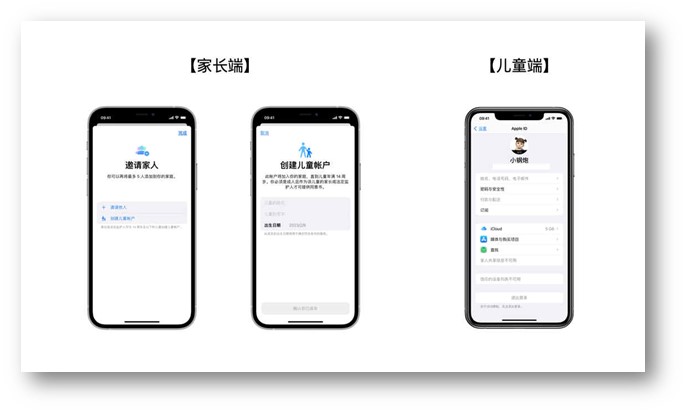
Create an Apple ID for the child’s account on the parent’s iPhone and log in to the child’s iPhone with the child’s account.
在家长端的iPhone创建儿童账户的Apple ID,并用儿童账户登录儿童端的iPhone手机。
Don’t worry about your child getting around all your restrictions by switching Apple IDs – once access restrictions are set, there’s no way to log out of your child’s Apple ID.
不用担心孩子通过切换 Apple ID 来绕开你的所有限制,一旦设置了访问限制,儿童端的 Apple ID 将无法退出登录。
1. Time management of utilization 使用时间管理
1.1 Screen Time屏幕使用时间
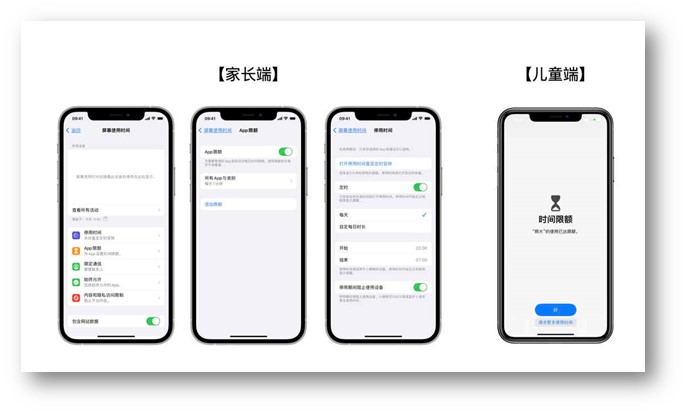
You can set the Downtime for children’s cell phones and set limits for App categories such as Games or Social. When the limit is reached, [Child] cannot lift the restriction by herself or himself, and it is necessary to request more usage time from a parent or guardian.
可以设置儿童手机的停用时间,并为 App 类别(如游戏或社交)设定限额。【儿童端】在到达限额时,无法自行解除限制,需要向父母或者监护人请求更多使用时间。
Specific method: Go to [Settings] – [Family Sharing] – [Screen Time] setting in [Parental]. For detailed setting methods, please refer to Apple’s official document: Set up Screen Time for a family member on iPhone https://support.apple.com/en-ca/guide/iphone/iph7f15d92dd/ios
具体方法:在【家长端】前往【设置】-【家人共享】-【屏幕使用时间】设置。详细的设置方法可参考苹果官方文档:在 iPhone 上为家庭成员设置屏幕使用时间https://support.apple.com/zh-n/guide/iphone/iph7f15d92dd/16.0/ios/16.0
1.2 Guided Access 引导式访问
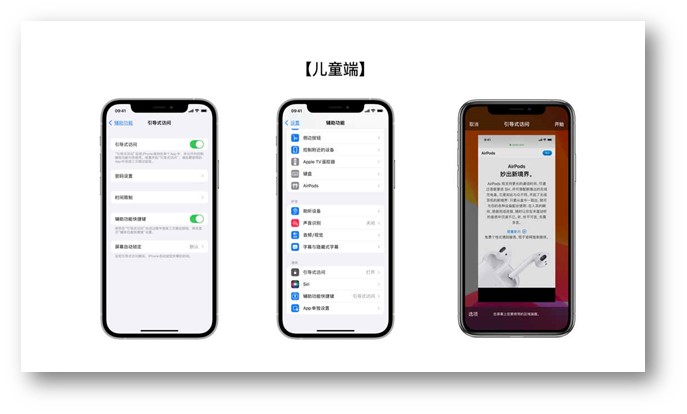
In one case, for example, if your child is studying and you only want her/him to use the “Dictionary” or study APP, you can use the [Guided Access] function.
有一种情况,比如孩子在学习时间,你只想让她/他使用“词典”或学习类APP,可以使用【引导式访问】功能。
To enable Guided Access, you need to go to [Settings] – [Accessibility] – [Guided Access] in [Kid’s Side] and set the password for Guided Access; later, open the specific App and press the side button three times to enable [Guided Access].
启用引导式访问,你需要在【儿童端】前往【设置】-【辅助功能】Accessibility-【引导式访问】Guided Access,设置引导式访问密码;稍后打开特定的 App,连按三次侧边按钮启用【引导式访问】Guided Access。
2. Content access restrictions内容访问限制
As movies, Apple’s official content offerings (Apple Music, iTunes Store, Apple Books, Apple News, Apple Fitness, etc.), and Apps in the APP Store are content rated. Parents can set the limits of what they can access for their children with respect to this content.
如同电影一样,Apple官方提供的内容(Apple Music、iTunes Store、Apple Books、Apple News、Apple Fitness 等),以及APP Store 中的 Apps 都进行了内容分级。家长可以对这些内容,为孩子设置他们能访问的范围。
Specific method: [Settings] – [Family Sharing] Go to Children’s Account – [Screen Time], and under [Content & Privacy Restrictions], set up graded access restrictions for each application.
具体方法:【设置】– 【家人共享】进入儿童账户–【屏幕使用时间】,在【内容和隐私访问限制】下,为每项应用设置分级访问限制。
3. Purchase consumption management 购买消费管理
3.1 Prevention of Cellular Data loss 防话费流量损失
To prevent your child from overusing cellular network data flows, you can use the settings to enable the use of only Wi-Fi flows for specified APPs (e.g., video software, games, etc.) and turn off the use of cellular data flows.
为了防止孩子过度使用蜂窝网络数据流量,可通过设置来实现对指定APP(如视频软件、游戏等)只能使用Wi-Fi 流量,关闭蜂窝网络流量的使用。
Specific method: firstly, on the child side, set the app to turn off cellular data support. After that, in the parent terminal [Settings] – [Family Sharing] enter the children’s account – [Screen Time] , under [Content & Privacy Restrictions] Content & Privacy Restrictions, set the APP’s [Cellular Data] to [Don’t Allow Change].
具体方法:首先,在儿童端,将APP设置为关闭蜂窝移动数据支持;之后,在家长端【设置】– 【家人共享】进入儿童账户–【屏幕使用时间】,在【内容和隐私访问限制】下,对APP的【蜂窝网络数据更改】设置为【不允许更改】。
3.2Ask To Buy 购买前询问
All paid items in the App Store are purchased through in-app purchases, including game vouchers, etc. There are also some paid resources in the iTunes Store and Apple Books. If you want to prevent children from misuse or lack of knowledge that may cause property losses, [Ask To Buy] is a must-have function.
App Store 中正式上架的 App,所有付费项目都是通过App 内购买实现的,包括游戏点券充值等。iTunes Store、Apple Books 中也有一些付费资源。想要防止儿童误操作或者认知不足造成财产损失,【购买前询问】Ask To Buy是必备的功能。
Specific method: [Settings] – [Family Sharing] Enter the children’s account – [Ask Before Buying]
具体方法:【设置】– 【家人共享】进入儿童账户-【购买前询问】
4. Children safety and security 儿童安全保障
4.1 Communication Limits 通讯限制
You can set your child to not take calls from strangers or to only talk, FaceTime call or text with specific people.
可以设置孩子不接陌生人电话,或者只跟特定人群打电话、FaceTime通话或短信。
Specific method: 【Settings – 【Family Sharing】 Enter the children’s account – 【Screen Time】 – 【Communication Limits】
具体方法:【设置】– 【家人共享】进入儿童账户–【屏幕使用时间】– 【限定通信】
4.2 Location Sharing 查找定位
It helps parents quickly locate the location of their child’s cell phone.
能帮助家长快速定位孩子手机的所在位置。
Specific method: [Settings] – [Family Sharing] Go to Children’s Account – [Location Sharing] , enable Location Sharing, and set it to [Block Changes].
具体方法:【设置】Settings – 【家人共享】进入儿童账户-【位置共享】Location Sharing, 启用位置共享,并设置为【阻止更改】Block Changes。
Summary:
If this article can help parents to understand and reasonably use some technical tools, assist children to develop good habits, so that electronic products play its due value, become a good partner and growth assistance for children, is our greatest wish and honor.
小结:
如果此文章能够帮助家长了解并合理使用一些技术手段,辅助孩子养成良好的使用习惯,让电子产品发挥其应有的价值,成为孩子的好伙伴和成长助力,是我们最大的心愿和荣幸。
References and acknowledgments 参考资料并致谢:
-
- https://support.apple.com/ searching keywords: family sharing, screen time for a family member